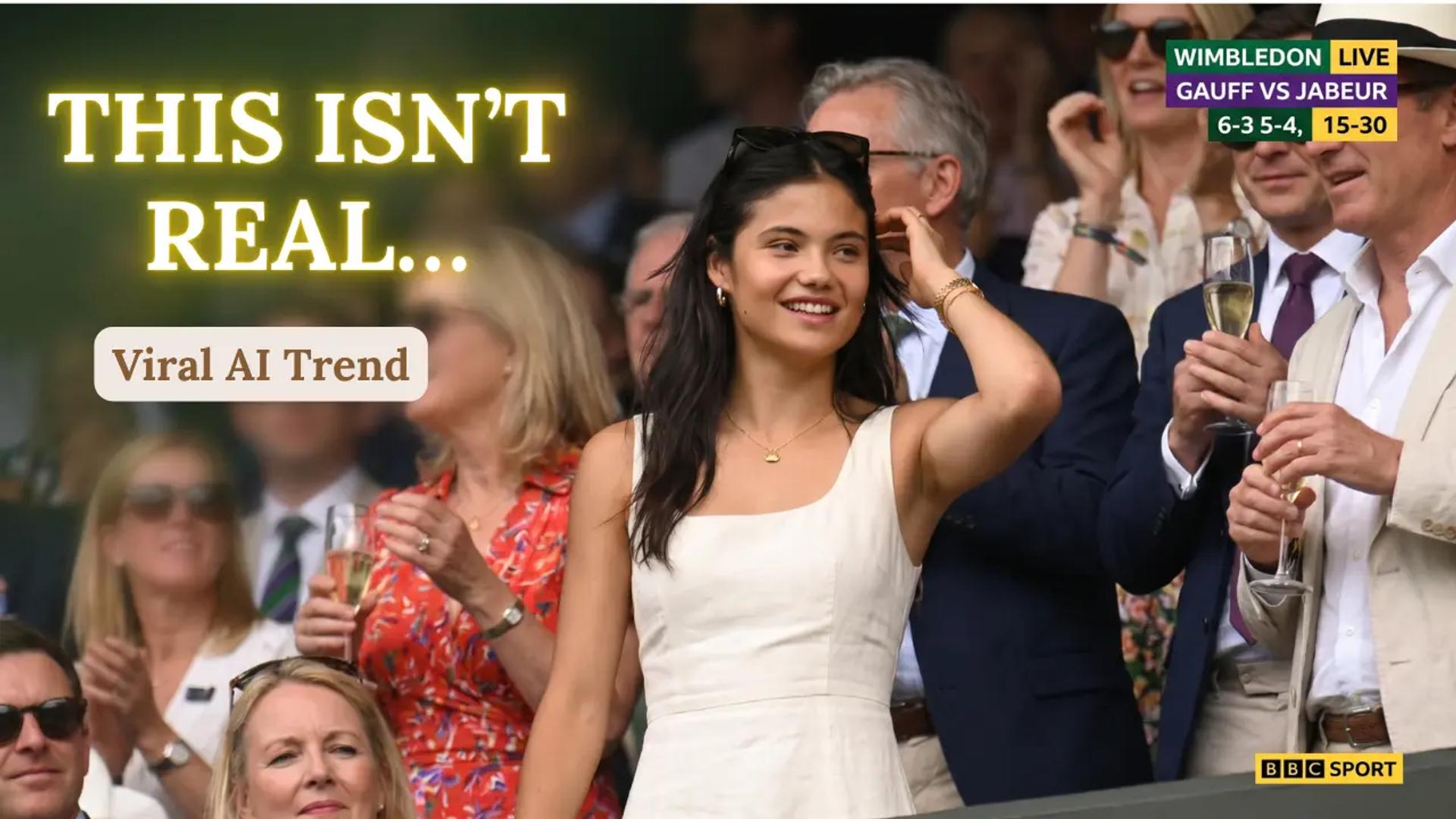
If you have scrolled through TikTok, Instagram Reels, or X (Twitter) recently, you have been tricked. You likely paused on a candid video of a stunning fan at a tennis match, a split-second reaction in an F1 pit lane, or a "caught on camera" moment at a music festival.
They look 100% real. The lighting is perfect, the broadcast overlay is authentic, and the subject’s micro-expressions—a subtle blink, a slight smile—are flawless.
But these videos are entirely synthetic. They are the product of a highly specific AI workflow utilizing GPT Image 2 and Kling 3.0.
For digital marketers, niche site owners, and campaign managers, mastering this workflow is a traffic goldmine. These "hyper-realistic broadcasts" trigger engagement and curiosity clicks at a rate exponentially higher than standard AI illustrations.
Here is the complete, click-by-click masterclass on how to generate these viral videos from scratch.
Phase 1: Generating the Perfect Base Asset (GPT Image 2)
Before you animate anything, your base image must be flawless. Do not use Midjourney for this specific trend; it tends to make things look too "cinematic" and beautiful. You want the raw, slightly imperfect look of a live television feed, and GPT Image 2 is currently the best model for following strict layout instructions (like broadcast overlays).
Step 1: Open Your AI Generator
Log into your ChatGPT Plus account (which uses GPT Image 2) or your preferred API interface that utilizes this model.
Step 2: Inject the "Anti-Cinematic" Master Prompt
Copy and paste the exact prompt below. Notice how we are intentionally asking for "bad" quality markers.
The Master Prompt:
A screenshot from a live Wimbledon TV broadcast during a packed Centre Court match. The camera cuts to the audience, an unbelievably attractive woman in her 20s with long black hair, flawless skin, elegant makeup, and a luxurious aura, seated in the VIP section wearing a sophisticated cream-white low-cut summer outfit with subtle jewelry. She smiles naturally while reacting to the match, unaware she's on camera. Wealthy spectators and champagne glasses around her, old-money tennis atmosphere, shallow depth of field. Full live tennis broadcast overlay: scoreboard, network watermark, broadcast graphics, 16:9 aspect ratio. The image looks exactly like a real TV screenshot, telephoto broadcast lens, realistic live color grading, slight compression artifacts, interlacing grain, subtle motion blur, imperfect live-camera framing.
Step 3: Audit the Output (The Quality Check)
When the AI generates the image, do a strict visual audit. Look for these three things:
The Text Check: AI struggles with spelling. Check the scoreboard overlay. If the letters look like alien symbols, ask the AI to "Regenerate, but ensure the text on the scoreboard is legible and looks like standard English/Numbers."
The Eye Check: Zoom in on the subject's eyes. They must look directly past the camera (watching the match), not directly at the lens. Candid realism dies if the subject makes eye contact with the viewer.
The Grain Check: If the image looks too clean, prompt the AI again: "Make it look lower quality, like a compressed 1080p cable TV feed with digital noise."
Once you have a flawless, 16:9 aspect ratio base image, download it to your desktop.
Phase 2: Animating the Shot (Kling 3.0 Workflow)
This is where the magic happens. We are going to take that static image and run it through Kling 3.0’s Image-to-Video engine to create lifelike micro-expressions.
Step 1: Import to Kling 3.0
Log into the Kling AI web interface and select the "Image-to-Video" tool. Upload the 16:9 base image you just downloaded from GPT.
Step 2: Set the Animation Parameters
Do not just hit generate. If you leave the settings on default, the AI will try to add too much motion, resulting in a "melting" face or warped backgrounds.
Set your parameters exactly like this:
- Motion/Movement Value: Set this to Low or 0.3/1.0. We only want subtle breathing, a natural blink, and a slight shift in posture.
- Prompt Adherence: Set to High.
- Video Length: 5 seconds (This is the perfect length for a looping social media short).
Step 3: Write the Motion Prompt
Kling needs text instructions on how to move the image. You must be incredibly specific.
Type this into the Kling prompt box:
Motion Prompt:
"Subtle, highly realistic live-action movement. The woman blinks naturally once, breathes softly, and forms a very slight, authentic smile. Her hair moves gently as if touched by a very light breeze. The blurred crowd in the background shifts slightly. The broadcast overlay graphics remain completely static and frozen. No morphing, no extreme movement."
Step 4: Generate and Review
Hit generate. This may take 2-5 minutes depending on server load. When the video is ready, watch the broadcast overlay (the scoreboard). If the scoreboard wobbles or melts, discard the generation and try again. The illusion only works if the TV graphics remain perfectly still while the human moves.
Phase 3: Post-Production & Audio (The Viral Secret)
A silent video will never go viral. Human brains rely on audio to confirm reality. To make this look like a true leaked TV broadcast, we need to add stadium sound and final color grading.
Step 1: Open CapCut (or Premiere Pro)
Import your 5-second Kling video into a new video editing project.
Step 2: Add Stadium Audio
Go to YouTube and search for "Live Tennis Stadium Crowd Sound Effect." Find a clip with generic crowd murmuring, maybe a distant racket hitting a ball, and light applause.
- Rip the audio and drag it under your video clip in CapCut.
- Pro-Tip: Lower the volume to around 40%. TV broadcast audio is usually compressed and sits quietly beneath the announcers.
Step 3: The "TV Filter" Hack
To perfectly hide any remaining AI artifacts (like slightly weird fingers or hair glitches), we are going to degrade the video quality on purpose.
- In CapCut, go to Effects > TV or Retro.
- Apply a very subtle "Interlaced" or "VCR" filter. Reduce the opacity of the filter to 15%. You barely want to notice it, but it adds a layer of digital noise that tricks the human eye into accepting the video as a real broadcast.
Step 4: Export for SEO and Social
Export the final video in 1080p at 30fps. (Do not export in 4K at 60fps—live TV is rarely broadcast in perfectly smooth 4K, and the hyper-smooth framerate makes the AI motion look robotic).
4 More Master Prompts to Scale Your Content
Once you master the Wimbledon workflow, you can generate an endless stream of localized content. Here are four more high-converting prompts for your base images:
1. The F1 Paddock Reality Check
Base Prompt:
Live F1 TV broadcast screenshot. A candid close-up of a stylish woman in a red racing team jacket with professional headphones around her neck, standing in a crowded, sun-drenched pit lane paddock. Shallow depth of field, heat haze in the background. Official F1 broadcast graphics overlay: driver standings ticker at the bottom, Rolex logo watermark. Realistic digital compression artifacts, saturated 'broadcast' colors, 16:9.
2. The NBA Courtside Luxury
Base Prompt:
NBA courtside broadcast screenshot. Extreme telephoto lens zoom on a woman sitting next to the court, wearing designer sunglasses and a black leather jacket. The bright hardwood floor is visible in the foreground. ESPN-style overlay: team scores, shot clock, and 'Starting Lineup' graphic. High-contrast stadium lighting, realistic motion blur as a player runs past the frame in the blurred foreground, 16:9.
3. The Music Festival Livestream
Base Prompt:
A 4K live stream screenshot from a major EDM music festival broadcast at sunset. Focus on a girl with glitter makeup and braided hair, looking toward the stage in awe. Golden hour lighting, lens flare, dust particles in the air. YouTube Live interface overlay: 'LIVE' red button, viewer count, scrolling chat on the right side. Slightly shaky camera framing, realistic phone-camera sensor noise, 16:9.
4. The News Broadcast "Man on the Street"
Base Prompt:
A screenshot from a live CNN news broadcast. An incredibly handsome man in a tailored suit standing on a busy New York street corner, looking slightly off-camera as if listening to a reporter. Overcast daytime lighting. Full news lower-third overlay: 'BREAKING NEWS' banner, scrolling stock ticker at the bottom, live bug in the corner. Slight telephoto compression, 16:9.